
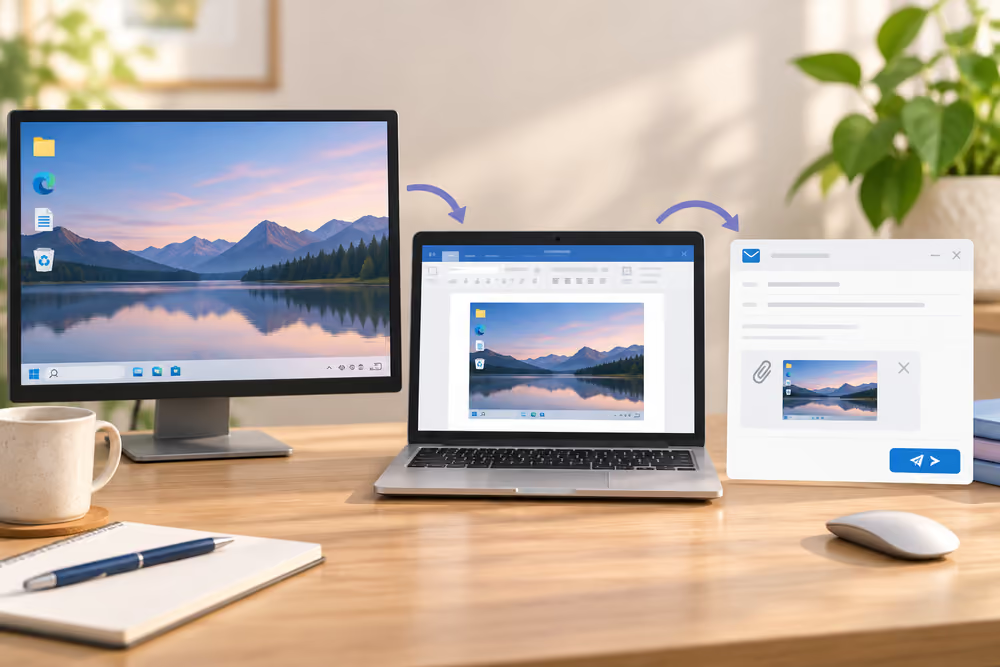
If something on your computer isn’t working the way it should, the quickest way to show us is to send us a picture of your screen. This picture is called a screen dump, or a screenshot.
On a Windows Computer
- Press the Windows key (the key with the Windows logo on it, near the bottom left of your keyboard), Shift and S together. The screen dims and a small bar of options appears at the top.
- Drag across the part of the screen you want to show us. To capture the whole screen instead, choose the full screen option in the bar.
- Windows saves the picture in the Screenshots folder, inside your Pictures folder. It also copies it, ready to paste.
- Attach the picture to an email, or click in your email and press Ctrl and V together to paste it straight in.
Quicker still: press the Print Screen key (often labelled PrtSc) to copy a picture of the whole screen, then paste it into your email with Ctrl and V.
On a Mac
- Press Shift, Command and 3 together to capture the whole screen. Or press Shift, Command and 4 together, then drag across the part of the screen you want.
- The picture is saved on your desktop.
- Attach it to an email.
Sending It To Us
Email the picture to the person you’re working with at Anyware, with a sentence or two about what you were doing and what went wrong.